
The original conversation
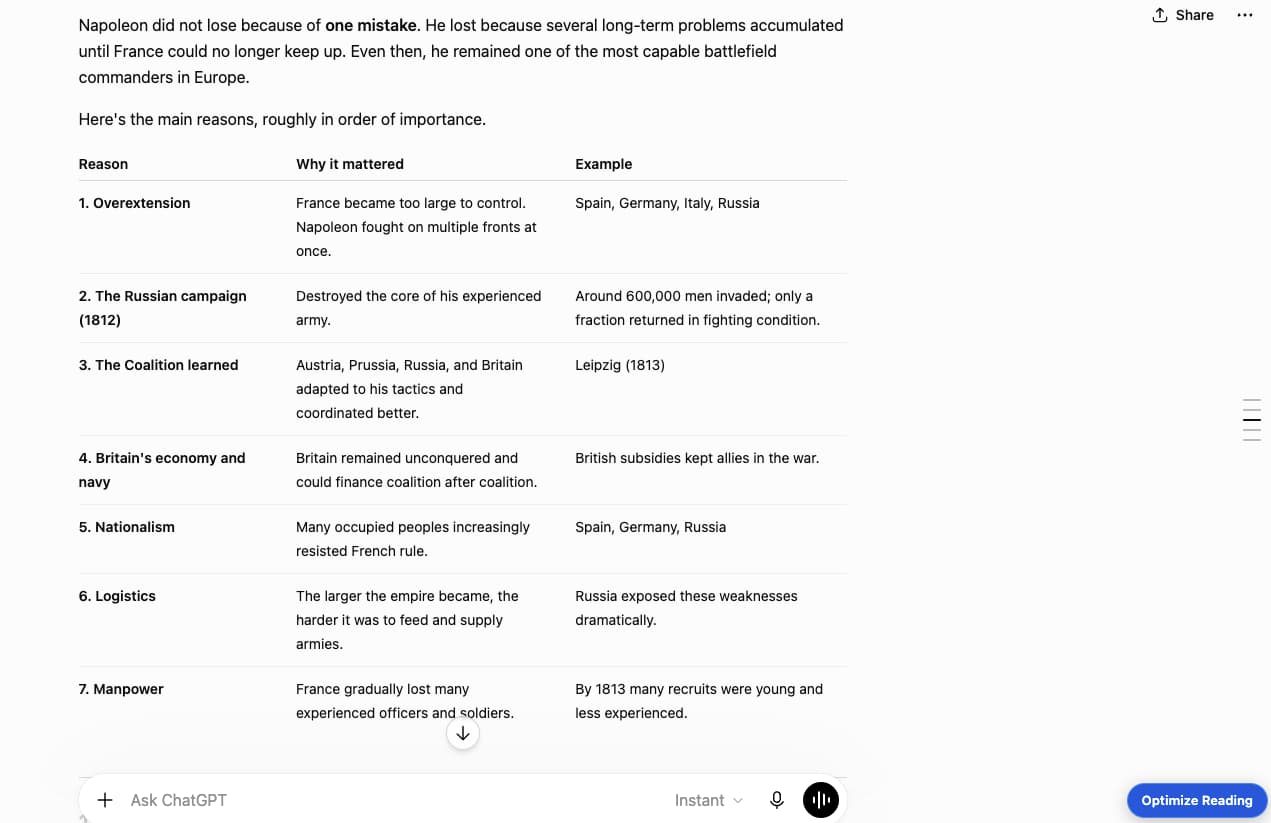
Keep chatting in the familiar source interface until you are ready to read.

Browser extension · Reading workspace
ReadBooster turns long conversations into a structured reading workspace with Document and Focus views, Guided Reading, Highlights, Stickers, and Print Studio.
Available for Firefox and Chrome


 Firefox
Version 0.7.3 available
Firefox
Version 0.7.3 available
 Chrome
Version 0.7.1 available;
0.7.3 update awaiting review
Chrome
Version 0.7.1 available;
0.7.3 update awaiting review
Local-first and open source. Your conversation content stays in your browser.
Reading problem
AI interfaces work well for conversation, but long answers and long threads quickly become difficult to scan, revisit, and read comfortably. ReadBooster gives that content a stable reading workspace with clearer structure, calmer typography, focused navigation, and tools for marking and preparing what matters.
Keep chatting in the familiar source interface until you are ready to read.
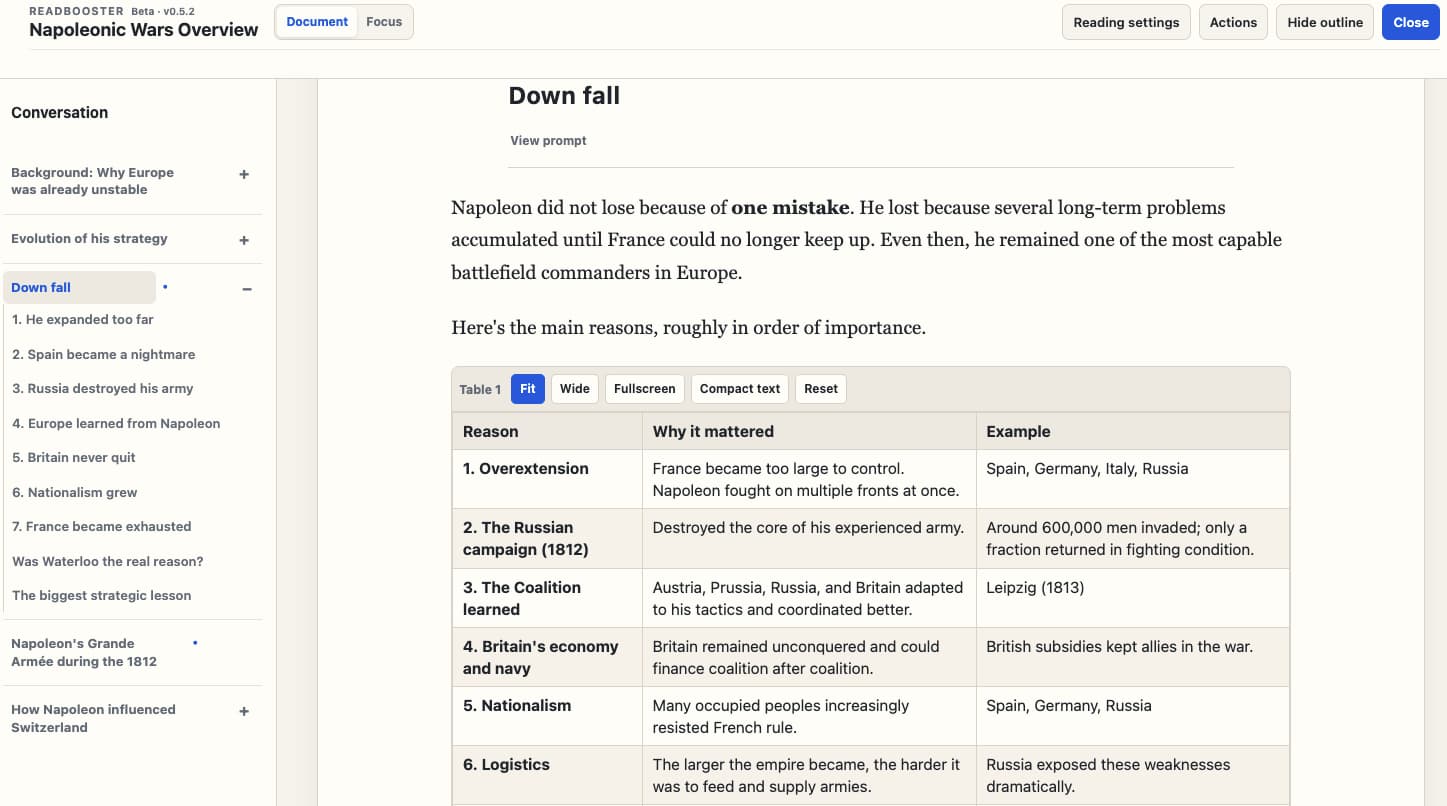
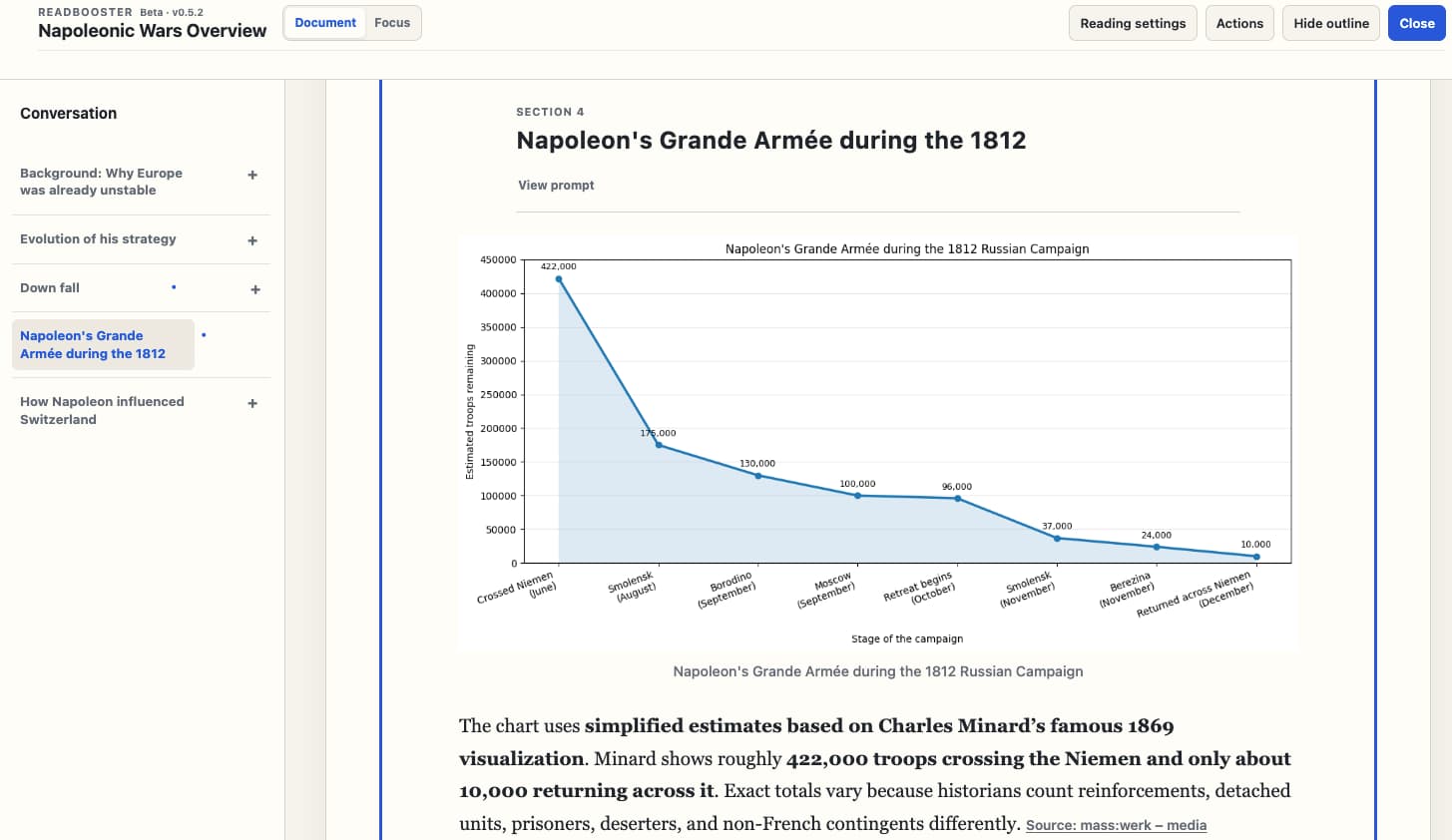
Follow long material without losing the prompts and sections that provide its context.
Reading experiences
Move between three complementary reading experiences without leaving the conversation behind.
Read the full conversation as one continuous structured document.
Concentrate on one response at a time without losing the surrounding conversation.
Emphasize the passage you are currently reading while keeping the rest of the document available. Introduced in version 0.7.4.
Reading goals
01 / Read comfortably
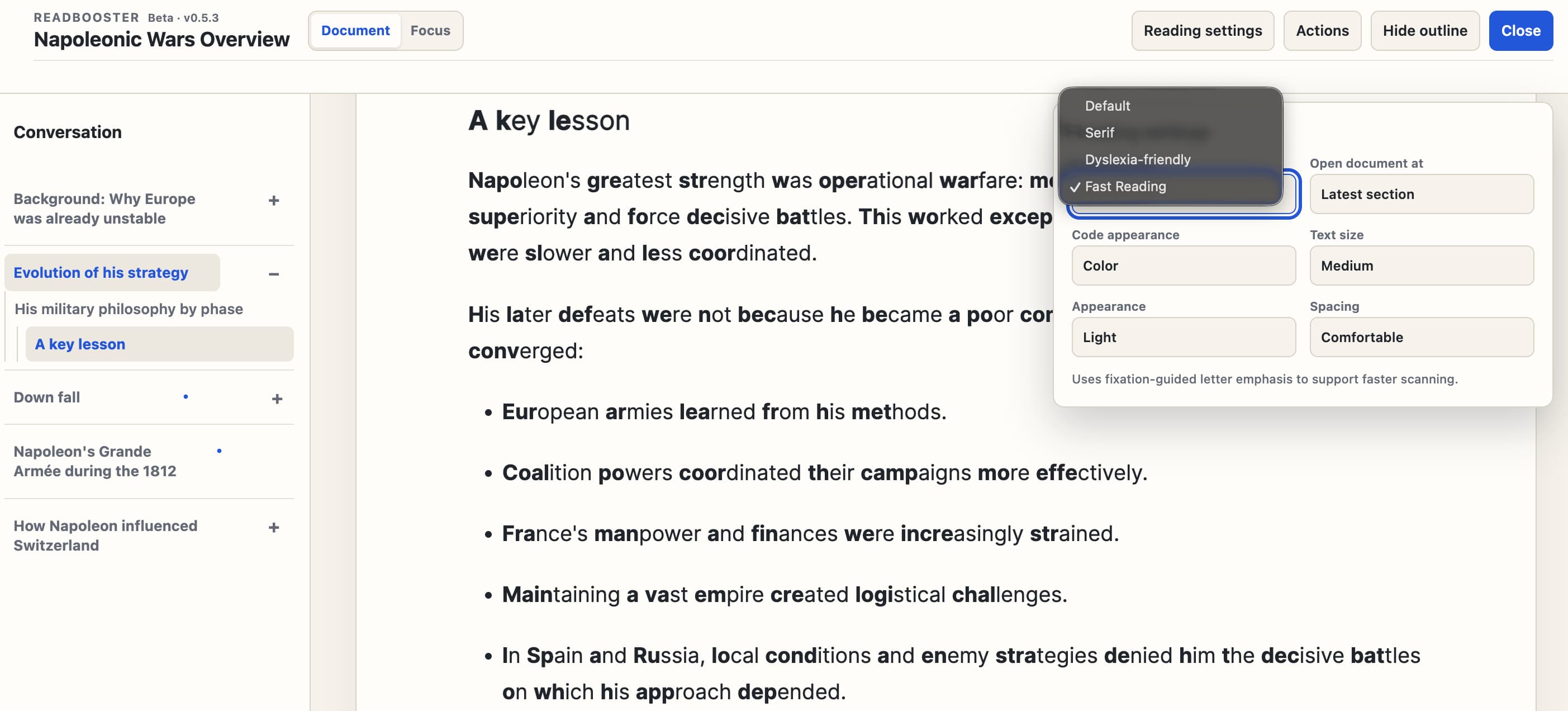
Use Document, Focus, or Guided Reading, then adjust text size, line spacing, content width, and light, dark, or system appearance. Reading presets include Default, Serif, Dyslexia-friendly, and Fast Reading.
Guided Reading helps maintain visual focus by reducing competing emphasis while the surrounding context stays visible.
Fast Reading uses the open-source Fast Font project by Born2Root, available under the MIT License.
02 / Stay oriented
Use the document outline, heading navigation, and previous or next controls to move with purpose. Custom section titles, conversation refresh, and source context help the document stay recognisable as it grows.
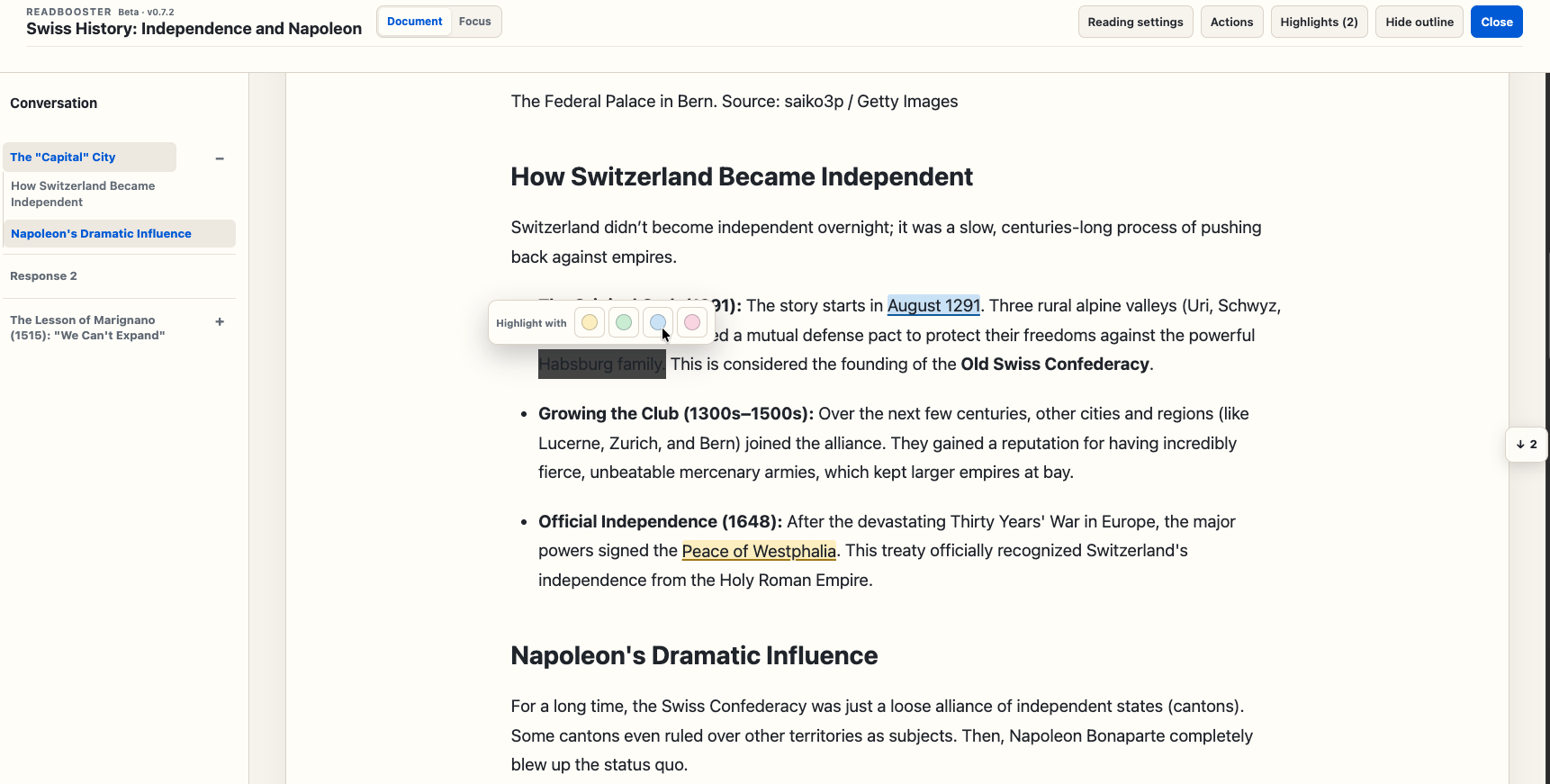
03 / Mark what matters
Mark important passages and leave your own notes without changing the original content. Highlights and Stickers persist locally with the conversation.
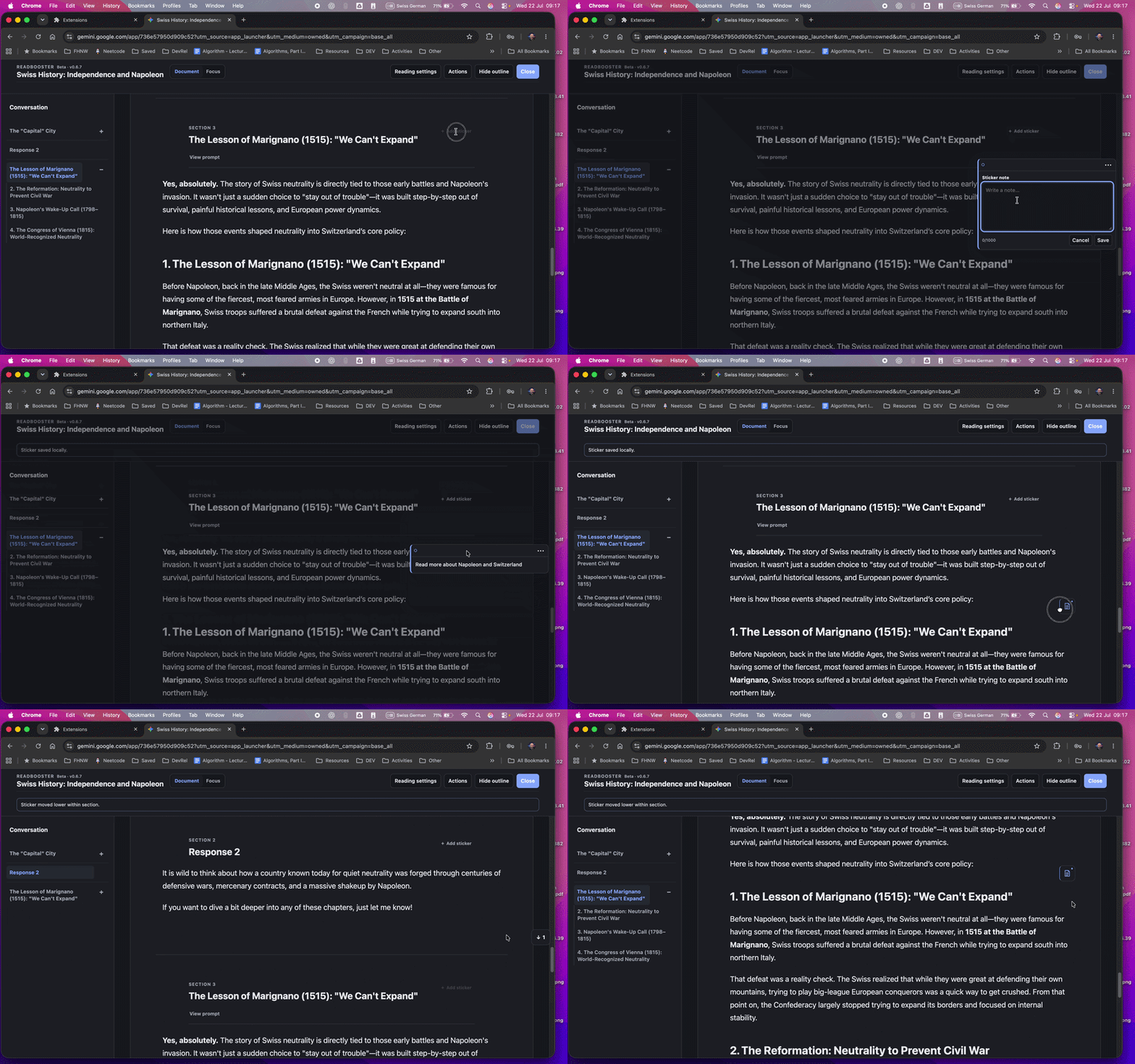
03 / Stickers
Attach local Stickers to relevant sections, move or collapse them, and use directional indicators to find saved notes above or below your current position.
Highlight a passage when the text itself matters. Add a Sticker when you want to leave your own note for a section.
04 / Prepare what matters
When something is worth keeping, prepare it as a clean document for printing or PDF.
Choose the sections, Highlights, and Stickers that belong in the document, then reorder sections for the printed version.
Add manual page breaks and choose A4 or Letter, portrait or landscape, margins, and spacing.
Use the browser’s print controls for a paper copy or Save as PDF when you need a portable document.
Browser stores
Install ReadBooster from your browser’s official extension store. Firefox currently has version 0.7.3. Chrome offers version 0.7.1 while the 0.7.3 update is awaiting Chrome Web Store review.
Firefox
Version 0.7.3 available
Install the latest Firefox release for Document and Focus views, Highlights, Stickers, Print Studio, and local processing.
Get ReadBooster for Firefox
Chrome
Install version 0.7.1 now. Version 0.7.3 remains under Chrome Web Store review.
Get ReadBooster for ChromeChrome and Firefox review and publish updates independently, so a new ReadBooster version may become available in one store before the other.
Current coverage
Privacy by design
ReadBooster processes supported page content locally in your browser. Conversation content is not sent to ReadBooster servers, and no account is required.
The extension is open source, contains no analytics or advertising, and keeps Highlights, Stickers, titles, and preferences in local browser storage.
Open source · Community
ReadBooster is an open-source project maintained by AviCloud. Ideas, bug reports, accessibility feedback, documentation improvements, code contributions, and requests for additional structured content support are welcome.
01 / Feedback
Share what you expected and what happened. Examples without private information can help.
Report a problem02 / Ideas
Suggest a reading, accessibility, or structured-source improvement. Requests guide priorities without promising a release.
Suggest an improvement Suggest structured-source support03 / Contribute
Documentation, testing, accessibility work, and code contributions are welcome. Open an issue before a larger change.
ContributeSecurity Report security concerns through SECURITY.md, not through a public issue. Remove private conversation content from public examples.
Reference
Yes. ReadBooster is free to install and use. It is developed as an open-source project under the Mozilla Public License 2.0, and no account or subscription is required.
The project continues to evolve with new reading features, source support, and community feedback. You can inspect the code, suggest improvements, or contribute through GitHub.
No. ReadBooster processes supported conversation pages locally to render its document view and does not send full conversation content to a ReadBooster server. Feedback is separate and opens an external Tally form only after you explicitly choose it.
ChatGPT, Google Gemini, Mistral AI, and Claude AI conversations are supported. GitHub Discussions has experimental structured-content support in version 0.7.5. ReadBooster does not claim support for the broader web.
No. ReadBooster creates a separate reading presentation in the browser. Display choices such as section renaming apply to the ReadBooster view, not to the source conversation.
Yes. ReadBooster is an open-source AviCloud project licensed under the Mozilla Public License 2.0. You can explore the project on GitHub to inspect it and take part.
Report problems, suggest improvements, share accessibility feedback, improve documentation, test changes, or contribute code. The contributor guide explains how to get started.